
What’s new in Bark for Schools Filter+
Updated 02/11/2026
Bark for Schools admins can now give staff Filter and Monitoring access separately, test any website against a filter policy, search Filter Reports by student or domain, import and export allowed and blocked URLs, and block YouTube Shorts. All changes are live now. Here’s what’s different and where to find it.
Filter and Monitoring Access Are Now Separate
You can give each staff member Monitoring access (review alerts and reports), Filter access (view filter reports and create, edit, or delete filter policies), or both. SuperAdmins still have full access, and anyone who had monitoring access before keeps it.
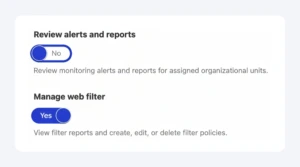
Where to find it: Reviewer management is now called Users and has moved out of the Monitoring section to its own spot in the sidebar. Each person shows a green check or red X for Filter and Monitoring, plus the student groups they can monitor (labeled as Google organizational units or Microsoft groups, depending on your setup). Set permissions when you invite or edit a user.
What to check: Staff with Filter-only access no longer receive monitoring alert emails or appear as alert reviewers. If someone should still get alerts, confirm Monitoring is turned on for them.
Admins who manage only part of a school can no longer grant SuperAdmin access when inviting new users.
Test a Website Against Your Filter Policy
Enter any web address and see instantly whether your policy allows or blocks it, along with the site’s category. The test uses the rules currently saved on the policy, so no student has to visit the site and there’s no waiting for changes to sync. Run as many tests as you like.
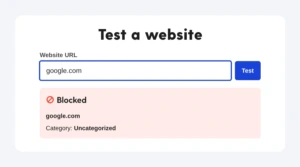
Where to find it: Open any filter policy. The new Test a website panel sits between the installation details and the Exceptions section.
Search Filter Reports By Student Or Domain
Type a student’s name or email to jump straight to their filter activity, or type a domain and press Enter to open its domain report. No more clicking through policy or organizational unit lists. Search covers your school only, and the date range you’ve selected carries through to the detailed activity logs.
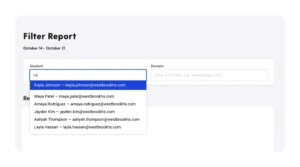
Where to find it: The search bar is at the top of the main Filter Report page. If your school has only one filter policy, you’ll now land on this main page instead of being taken directly into that policy.
Import and Export Allowed and Blocked URLs
No more rebuilding lists from scratch. Import allowed or blocked URLs from another policy or a CSV file, choose the source and target lists, then pick Add to list to keep existing entries or Replace list to overwrite them. Only the target list changes, and nothing is saved unless every entry is valid.
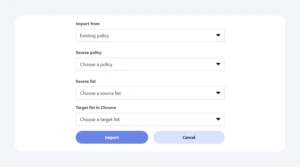
Where to find it: In the Web filter settings menu, open your filter, scroll to Exceptions, and click Import/Export. From there you can Export allowed CSV, Export blocked CSV, or Import allowed or blocked URLs.
Block YouTube Shorts and Hide Recommendations
Until now, YouTube was all or nothing: allowed or blocked. Two new Chrome policy settings give you more control. One blocks YouTube Shorts while leaving regular videos available, and the other hides the “Up next” recommendations panel on video pages. Both are off by default, so existing policies don’t change until you turn them on.
When Shorts is blocked, students who open the Shorts feed, scroll to the next Short, or tap a Shorts tile land on the standard blocked page, and Shorts shelves, tabs, and sidebar links are hidden across YouTube. A Short opened as a regular video link still plays. Hiding recommendations removes the suggested videos beside the video being watched, while playlists stay visible. Both settings apply to Chrome only, not the DNS filter, and reach students once the Chrome extension auto-updates, usually within a few hours.
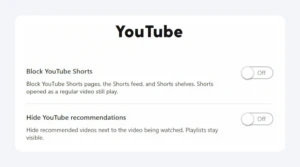
Where to find it: Open your Chrome filter policy and find the YouTube section. Turn on Block YouTube Shorts or Hide YouTube recommendations. In the admin activity log, blocked Shorts now include a Watch video link so you can see what a student tried to open.
Fixes and Improvements
Clearer sign-in message: If Google sign-in fails because your account is missing an emergency contact phone number, you’ll now see a message asking you to contact your school’s SuperAdmin to add it. Once it’s added, sign in as usual.
Mark all reviewed: Clearing alerts in bulk now completes reliably, even on long alert lists.
Chrome filter extension: We fixed an error that blocked schools from generating or updating the Chrome filter extension. If a build failed recently, try again.
Questions?
Reach out to your Customer Success Manager with any questions about these changes.
More Resources
 Product and technology
 Testimonials
Stay ahead of the latest online safety trends.
The digital landscape is constantly changing. Sign up to receive new research, tools, and resources as soon as they’re released.