
How To Set Up Amazon Echo Parental Controls
Learn how to set parental controls on your child’s Amazon Echo.

Smart speakers allow you to do a number of things with your voice, such as checking the weather, listening to music, and ordering products online. Amazon Echo parental controls are handled in Amazon’s parental controls — the same ones you use to restrict Amazon Prime and other devices on your account. But there are extra parental controls you can add directly to your Echo device.
How to Set Parental Controls on Amazon Echo
- Create and log in to your Amazon Household Account.
- Under Accounts and Lists, click Your Account.
- Under Shopping Programs and Rentals, click Amazon Household.
- Click Add a Child.
- Enter your child’s details.
- Click Manage Your Content and Devices to control what purchased content your child can access, as well as the devices they can use to access content.
- Add a PIN or disable voice purchasing to prevent unauthorized purchases.
- Open the Alexa app or visit echo.amazon.com on your smartphone.
- Tap the Menu icon.
- Tap Settings.
- Scroll until you see Voice Purchasing.
- Add a 4-digit PIN and tap Save, or change the setting to completely disable voice purchasing.
Bark helps families manage and protect their children’s digital lives.

What is FreeTime?
With Amazon FreeTime, a parental control app available for a small monthly fee, you can create a personalized experience for your kids and choose what content they access on their device.
Parent Dashboard
The Parent Dashboard is where you share content with Alexa devices using Amazon FreeTime, and monitor what content your kids are using and for how long. You can also manage your child’s access to smart home functionality by toggling it On or Off in the Parent Dashboard. You can access the Parent Dashboard on your computer.
Time Restrictions
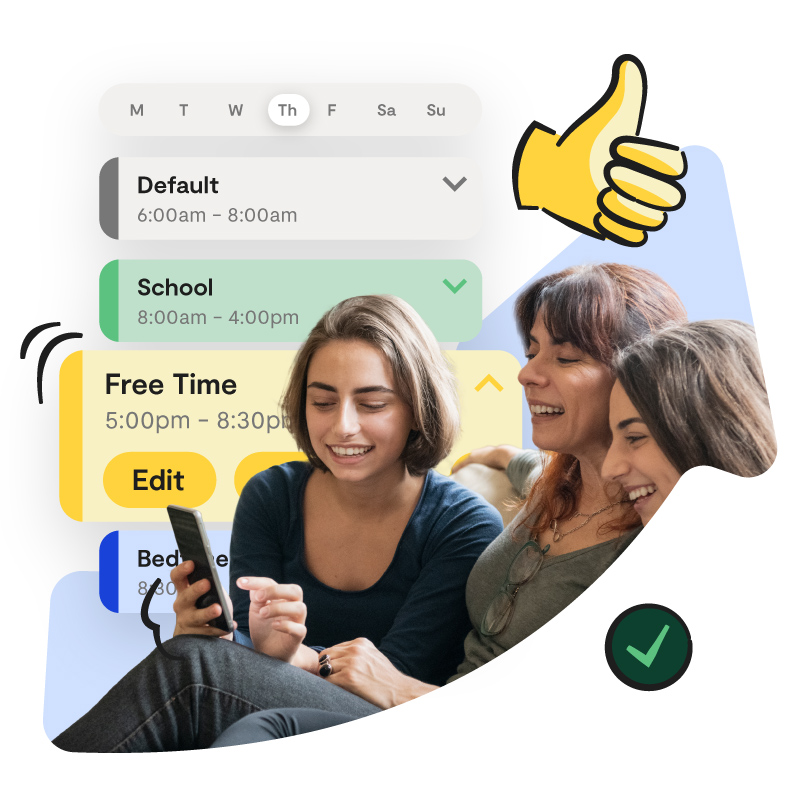
In the Parent Dashboard, you can set time limits for the device when Amazon FreeTime is turned on. You can also use the Parent Dashboard to pause the device, which prevents use of Amazon FreeTime on the device until you unlock it or the lock time expires.
NOTE: Some Alexa device settings and features aren’t available when an Alexa device is in Amazon FreeTime.
Helpful Resources for Families
Here are some awesome tools to help families navigate raising kids in the digital age!
All-in-One Parental Control Guide
Your go-to list of parental controls for devices, apps, games, and more.

Bark's Parenting Facebook Group
Bark’s Parenting in a Tech World Facebook group has over 190k members.

The 12 Most Dangerous Apps
Learn about which apps are both popular with kids and pretty concerning.
Bark — The Parental Control Solution
In addition to setting parental controls on your child’s device, the next safety layer parents and caregivers should strongly consider is a monitoring solution to assess the content their kids encounter (and produce) across text messages, social media, email, and more.
Bark helps families manage and protect their children’s entire online worlds. Our award-winning service monitors 30+ of the most popular apps and social media platforms for signs of issues like cyberbullying, suicidal ideation, online predators, threats of violence, and more. Our web filtering and screen time management tools empower families to set healthy limits around the sites and apps their kids can access and when they can visit them. Sign up today to start your free, one-week trial.