***This blog post was updated on August 6, 2026.***
If you’re the proud parent of a new Bark Watch kid, congratulations! You’ve made a great choice getting them a mobile device that will help keep them connected as well as safe online and in real life.
To help set you up for success, we’ve got 5 tips that will make the set-up process a breeze, so your kid can get to exploring and you can start getting peace of mind.
Pro tip: We recommend setting up the Bark Watch before you plan to give to your kid. Charge it, then put it back in the box and wrap it all up (if you want). This way, when your kid opens it up, it’ll be all ready to go!
5 Tips for Setting up Your Kid’s New Bark Watch
1. Make sure you're home and have your Wi-Fi password handy
Right after you take the Bark Watch out of its box and power it on — here’s our quick start guide, in case you want even more detail — you’ll want to get it connected. The first step? Hooking it up to your home Wi-Fi network. You’ll select the network name and then type in the password on the Bark Watch screen. Once that’s done, you’ll switch over to your phone and adjust settings in the Bark parent app.
2. Gather all of the phone numbers you want your child to be able to text and call
One of the things that makes the Bark Watch safer than a regular smart watch or smart phone is that you control every single contact. That means your kid won’t be getting wrong numbers, scammers, or strangers messaging them. You’ll add friends and family as trusted contacts in the Bark parent app, and the watch will talk and text to them only. You can also designate numbers as emergency contacts so your kid can get in touch even quicker with them.
3. Explore the location tracking dashboard
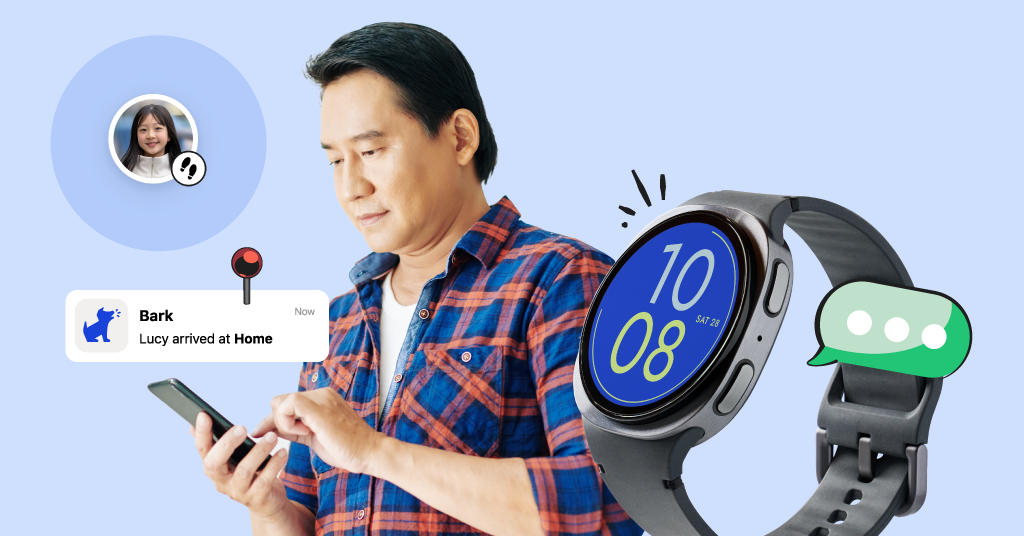
When we were designing the Bark Watch, one of things parents requested most was a quick and easy way to track their child’s location. So we designed the dashboard to be as seamless to navigate as possible. Take some time exploring the parent app, tap the Map section, and see how easy it is to locate the Bark Watch.
4. Teach them about the emergency and 911 buttons so there’s no accidental dials
The Bark Watch makes it easy for your child to reach you. First, you can designate your number as an emergency contact in the parent dashboard. Then, if your child needs to call or text you, all they have to do is pull up the Contacts or Phone app and select your contact.
The Bark Watch uses Samsung's built-in Emergency SOS feature, so your child has the ability to reach 911 if they ever need help. Kids just have to quickly press the Home button (the top right button) 5 times, then swipe the Emergency icon to the right to place the call. Take a moment to explain how and when to use this feature so your kid knows only to use it in real emergencies. This will help prevent accidental calls while ensuring they feel confident using the features if there’s a real need for it.
5. Send them a celebratory text so they have something to read when you give it to them
Here’s a fun little idea: Once you’ve gotten everything set up, send your kid a welcome message so they have a text waiting for them when they open it up. Something like “Welcome to your next big adventure! Love, Mom” or “You’re a big kid now! Congrats!” Giving your kid a watch opens up a new world for both of you, so enjoy this new phase of your relationship.
Bonus tip: Set the watch face as a silly picture
Did you know you can set the watch face with any picture received in messages? You totally can! Try sending a silly one to their device and setting it as the watch face. The next time your kid turns on their new device, they'll have an unexpected laugh waiting for them.
Why Choosing the Bark Watch Was a Great Decision
The Bark Watch is so much more than just a cool gadget — it’s a safer way for your child to connect with friends and family, explore their world responsibly, and even learn about healthy tech habits.
Plus, you get peace of mind with unbeatable features like Bark’s built-in content monitoring, customizable parental controls, location tracking, and trusted contact lists. We hope it helps your family learn how to navigate technology more safely and prompts some heart-to-heart conversations as your child grows up.
Read more

Bark helps families manage and protect their children’s digital lives.