It's the start of the school year, and tons of kids are coming home from their first day with a Chromebook or laptop in hand. Kids carry it around like a prize; meanwhile, parents now have a new device to manage at home. If you've felt any sense of unease or stress about this new avenue of internet access, you're not alone.
The truth is, a school-issued device — Chromebook, laptop, iPad, etc. — works differently than a personal device in the home. So here's a simple rundown of what to do when your child brings home a Chromebook from school, and what's actually worth paying attention to.
When the Chromebook Is At School
Almost all schools now have real safeguards in place for students’ technology use, things like web filters, device management software, and usage policies. But they're built to manage thousands of devices at once, not to catch everything one specific kid might run into. So the Chromebook may have a decent safety net, but just like any web filtering system, it’s never going to be completely reliable.
When the Chromebook Comes Home
Here’s the crucial part for parents: once that device disconnects from the school’s Wi-Fi, the school's network-level filtering may not follow it. The device comes home, but those safeguards often stay at school. And because the school owns the device, parents usually can't just install their own parental control software the way they could on a personal phone or tablet. Tons of parents have naturally tried to add parental controls to their kid’s school Chromebook, only to find they actually have no permissions to install software or adjust the settings.
Chat Rooms, Risky Content, and Screen Time
If the Chromebook was truly just used for homework, it’d be a lot easier. The problem is, the internet access and the platforms kids need for homework can often be the same places where they run into trouble.
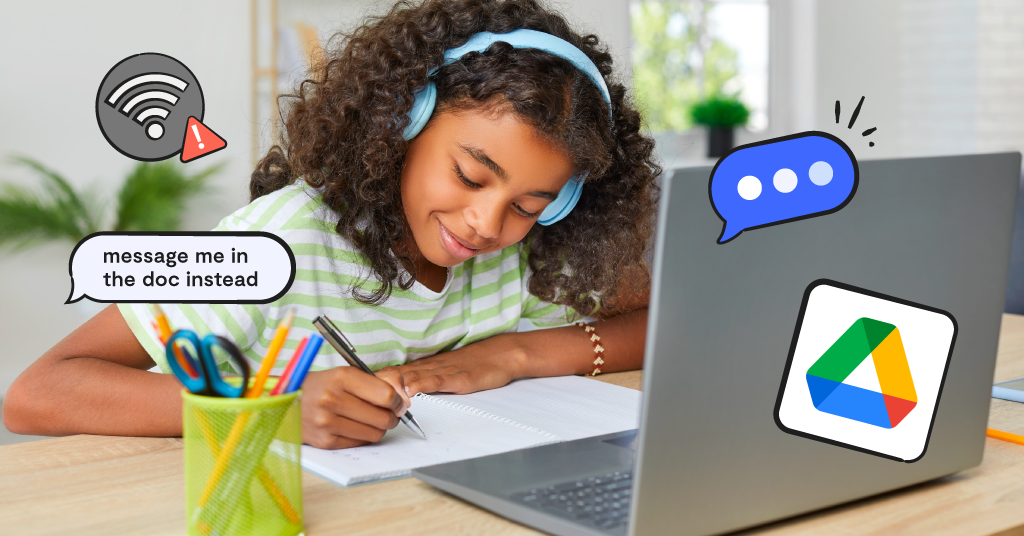
Kids have been known to use a shared Google Doc to chat with each other, essentially creating a live chat that can happen in the middle of a lesson. Sites like YouTube are often not blocked on school devices because teachers use it for educational purposes, but all it takes is a few clicks, and kids can be viewing adult content right from their school device. And on top of all that, it's one more device adding to the pile of screens already competing for your kid's attention.
What You Can Do As a Parent
Important questions to ask the school
You don't need to become an IT expert. You just need a few good questions:
- What monitoring or filtering software is on this device, and does it work at home too?
- Will I be notified if something concerning is flagged?
- Can I install anything of my own on it, or is it fully locked down?
Specifically for Chromebooks, ask if the device allows Family Link. Some school-managed Chromebooks block it entirely; others allow limited use.
You may not get the most reassuring answers, but that's okay. Understanding what the device can and can't do is the first step to deciding what to do next.
Simple steps to take at home
A few practical things worth doing once the device is home, especially with a younger or middle schooler still building good habits:
- Set a location rule, not just a time rule. A Chromebook at the kitchen table is much different than than one behind a closed bedroom door. This one's low-effort and genuinely effective.
- Talk to your kid about what's not private. School accounts are visible to the school. That's not a scare tactic, just a fact worth saying out loud so it doesn't feel like a secret, unwatched space.
- Ask your kid to show you around their apps. Five minutes of "show me how you use this" will teach you more than any settings menu, and it opens a conversation instead of feeling like a search.
Where Bark Fits In
This is exactly the gap Bark was built to close. Since most school devices won't let parents install monitoring software directly, the Bark Home works at the router level instead. It allows you to allow or block apps and sites and manage internet access on any device connected to your home Wi-Fi, including the one the school owns and locked down.
For the accounts and apps your child uses across their other devices, Bark's monitoring can send alerts for things like cyberbullying, predators, and signs of depression, and give you a heads-up before a small issue becomes a big one. And if your child's school happens to partner with Bark for Schools, there's already a layer of protection running in the background on their student accounts, with alerts going to both the school and the parents. Check out Bark’s entire suite of parental control products to see which one is the best fit for your family.
Read more
Bark helps families manage and protect their children’s digital lives.